Crossword Generator for Kids With Picks
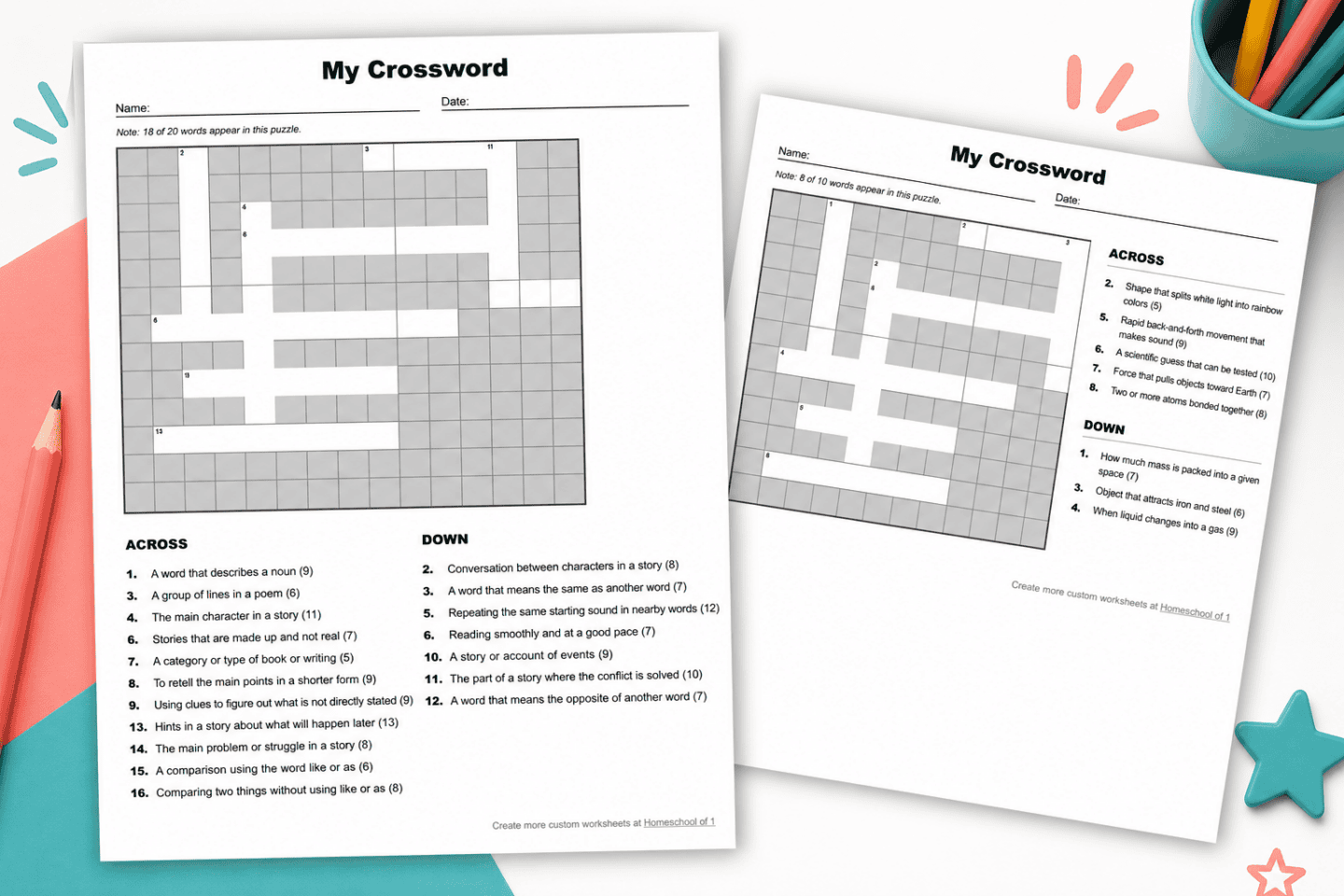
Crossword puzzles are an excellent way to encourage learning and critical thinking in children. With a crossword generator for kids with picks, teachers can easily create customized puzzles tailored to their students’ interests and educational needs. This resource can be invaluable for reinforcing vocabulary, spelling, and comprehension skills. Here’s how you can effectively use this tool in your classroom.
Understanding the Crossword Generator
A crossword generator is a digital tool that allows you to create unique crossword puzzles. The “picks” aspect typically refers to the ability to choose specific words, themes, or difficulty levels. This flexibility is essential for educators who want to cater to different grade levels or subject matter.
Key Features of a Crossword Generator
- Custom Word Selection: You can input specific words that align with your lesson plans.
- Adjustable Difficulty Levels: Choose from various difficulty settings to match your students’ abilities.
- Printable Format: Most generators allow you to print the puzzles directly, making them easy to distribute.
- Hints and Clues: You can provide hints for each word, which is particularly helpful for younger students.
Step-by-Step Guide to Creating a Crossword Puzzle
Step 1: Choose Your Words
Begin by selecting a list of words you want to include in your crossword puzzle. Consider the following:
- Relevance: Choose words that relate to current lessons or themes.
- Difficulty: Match the complexity of the words to the students’ grade level. For younger students, simpler words are more appropriate, while older students can handle more challenging vocabulary.
Step 2: Access the Crossword Generator
There are various online crossword generators available. Search for one that allows you to customize your puzzle. Popular options include:
- Discovery Education’s Puzzle Maker
- Crossword Labs
- Armored Penguin
Once you’ve chosen a generator, navigate to its crossword puzzle creation section.
Step 3: Input Your Words and Clues
After accessing the generator, input your chosen words into the designated field. Most generators will also have an option to add clues. For example, if your word is “apple,” the clue could be “A red or green fruit.”
Step 4: Select Puzzle Settings
Adjust the settings based on your preferences:
- Grid Size: Decide on the size of the puzzle grid. A standard size might be 10×10 for younger students, while older students might enjoy a 15×15 grid.
- Layout: Some generators allow you to choose between horizontal and vertical layouts, or a mix of both.
- Theme: If applicable, select a theme that fits the words you’ve chosen.
Step 5: Generate and Review the Puzzle
Once you’ve input all your information, click on the “Generate” button. Review the puzzle to ensure that the words fit correctly and that the clues are appropriate. If necessary, make adjustments to the words or clues.
Step 6: Print and Distribute
After finalizing your puzzle, print it out for your students. Make sure to use high-quality paper for durability. If you plan to use the puzzles multiple times, consider printing on cardstock.
Engaging Your Students With Crossword Puzzles
Crossword puzzles can serve multiple educational purposes beyond vocabulary practice:
Vocabulary Reinforcement
Use crosswords to reinforce new vocabulary learned in class. By integrating words from recent readings or lessons, students can engage with the material in a fun way.
Collaborative Learning
Encourage students to work in pairs or small groups to solve the puzzles. This not only fosters teamwork but also allows them to discuss clues and share knowledge, which can enhance their understanding of the material.
Assessment Tool
Utilize crossword puzzles as informal assessment tools. You can gauge students’ comprehension levels based on how well they complete the puzzles.
Seasonal Themes
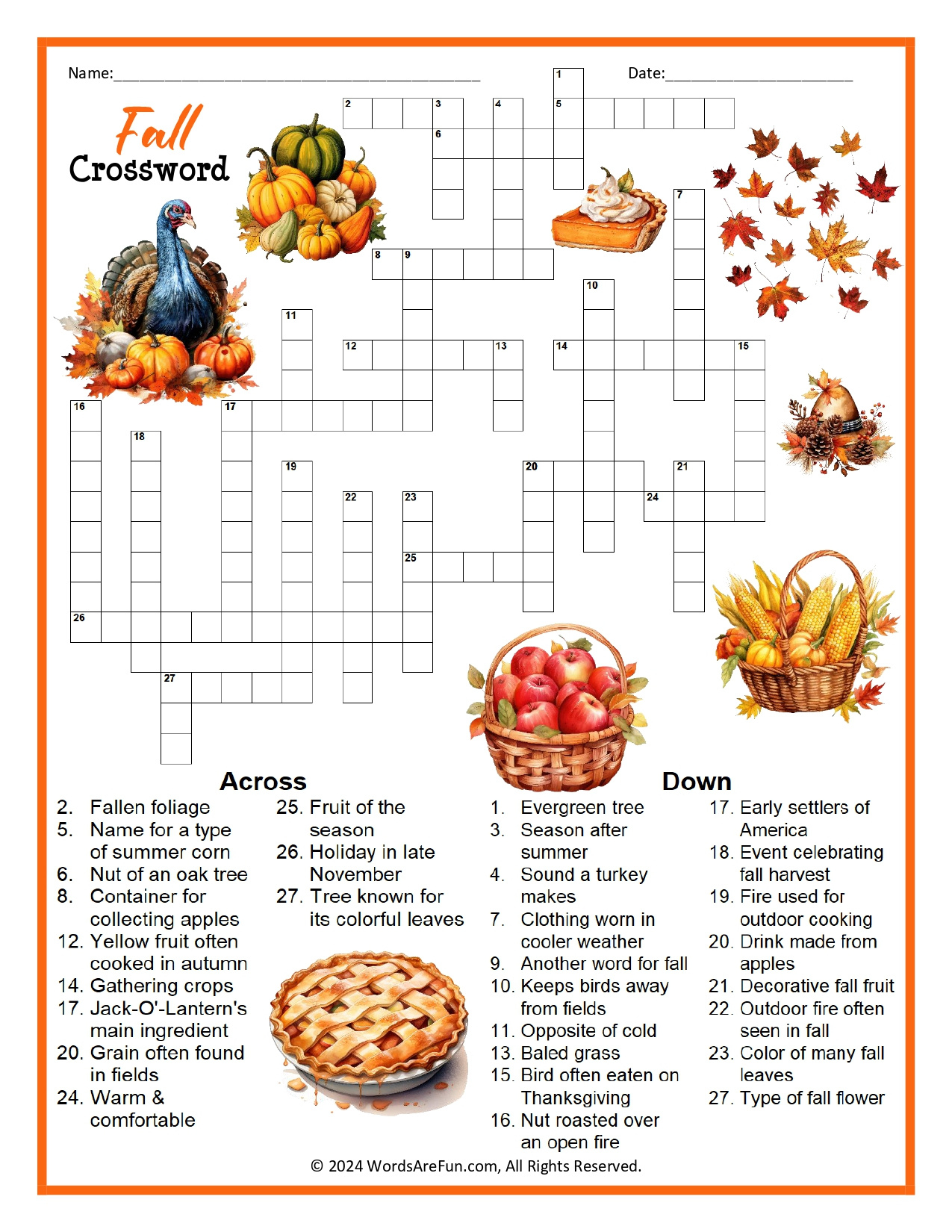
You can create themed puzzles for holidays or special events, making learning more festive. For example, a Halloween-themed crossword can include words like “pumpkin,” “ghost,” and “candy.”
Variations for Repeat Use
One of the best aspects of a crossword generator is that you can create multiple versions of a puzzle using the same words. Here are some ideas:
Change the Clues
Simply changing the clues can turn the same word list into a new puzzle. For example, instead of “A fruit that keeps the doctor away,” you can use “A round fruit that is often red or green.”
Alter Difficulty Levels
Create different versions of the same crossword, adjusting the difficulty for various skill levels. This allows you to cater to students who may need more challenge or support.
Thematic Crosswords
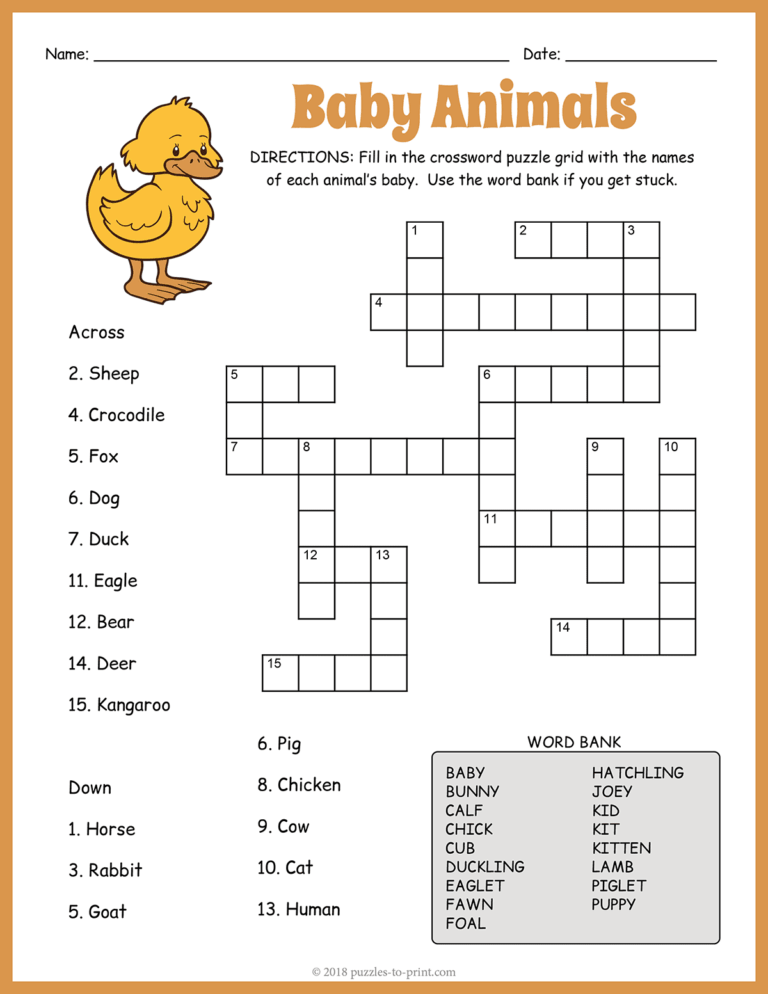
Switch up themes regularly to keep students interested. For instance, you can create a crossword based on animals for one week and switch to sports the next.
Using a crossword generator for kids with picks not only makes lesson planning easier but also creates engaging and educational experiences for your students. By following these steps, you can effectively incorporate this resource into your teaching strategy, making learning both fun and challenging. Remember, the ability to customize puzzles means that you can adapt to your students’ needs, ensuring that each puzzle is a valuable learning tool.